To build a clean digital workflow for patterns, designs, and photos, start by organizing your files into clear, descriptive folders with subfolders for projects or stages. Use consistent naming conventions with dates or versions for easy tracking. Leverage cloud storage and backup regularly for security. Manage incoming files promptly, deleting duplicates and outdated versions. Automate backups and review your system periodically to adapt to evolving needs. Keeping your workspace tidy boosts productivity—if you’re ready to optimize your process further, you’ll find helpful tips below.

Get business pricing on tools and workshop supplies
- Business-only prices and quantity discounts
- Tax-exempt purchasing
- Multiple users, one account, clear invoices
Key Takeaways
- Establish a consistent folder structure with clear naming conventions for patterns, designs, and photos for easy navigation.
- Use tagging and metadata to categorize files, enhancing searchability across all digital assets.
- Automate backups via cloud services and external drives to ensure data security and easy recovery.
- Regularly sort incoming files immediately, deleting duplicates and outdated versions to maintain workspace cleanliness.
- Continuously review and refine your workflow processes to adapt to new tools, project needs, and efficiency improvements.
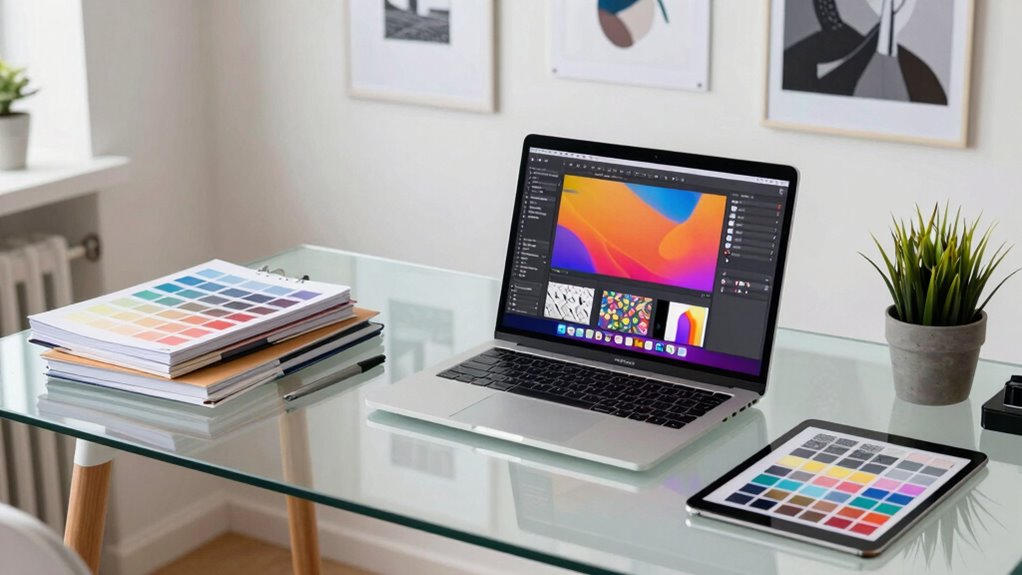
A clean digital workflow is essential for staying organized and boosting productivity in today’s fast-paced environment. When working with patterns, designs, and photos, how you manage your files can make or break your efficiency. Start by establishing a solid system for file organization. Use clear, descriptive folder names that reflect the content, such as “Patterns,” “Finished Designs,” or “Client Photos.” Within these main folders, create subfolders for different projects, clients, or stages of work to keep everything neatly categorized. Consistency is key—stick to a naming convention that makes sense to you, so you can locate files quickly without wasting time searching. Incorporate version control by adding dates or version numbers to filenames, helping you track progress and avoid confusion over the latest edits. Regularly reviewing your workflow can also help you identify areas for improvement and maintain a structured system that adapts to your evolving needs. Additionally, leveraging digital tools designed for workflow management can streamline your process and enhance your organization. Implementing a centralized file management system can further improve your ability to access and share files efficiently across devices and collaborators. Using metadata and keywords can also improve your searchability and speed up your workflow, especially as your collection grows. Incorporating tagging strategies into your file organization can significantly boost your efficiency when locating assets. Equally important is implementing reliable backup strategies. No matter how organized you are, hardware failures or accidental deletions can happen. Regularly back up your files using a combination of cloud storage and external drives. Cloud services like Dropbox, Google Drive, or OneDrive offer automatic syncing, so your latest work is always safe off-site. External drives provide an extra layer of security; schedule weekly backups of your entire workspace to prevent data loss. Automate this process where possible to guarantee consistency, and test your backups periodically to make sure they’re working correctly. This way, you can recover your files swiftly if something goes wrong, minimizing downtime and stress. To keep your digital workspace streamlined, develop a routine for managing incoming files. When you download new photos or design assets, immediately sort them into their respective folders rather than leaving them cluttered on your desktop or in random downloads. Use keywords and metadata to tag files for easier searching later. Maintain a clean desktop—an uncluttered workspace reduces distractions and speeds up your workflow. Also, set aside time at the end of each work session to review and tidy your digital files, deleting duplicates or outdated versions, and updating your backups.
Popular right now

Sony WH-1000XM6 Wireless Noise-Canceling Over-Ear Headphones, Blue, Bundle

De'Longhi Linea Classic Espresso Machine with Adjustable Milk Frother

Ninja CREAMi 7-in-1 Ice Cream Maker, NC301
As an affiliate, we earn on qualifying purchases.
Frequently Asked Questions
What Software Is Best for Organizing Digital Assets?
You should consider using dedicated Digital Asset Management (DAM) software like Adobe Bridge, Lightroom, or Capture One, which organize your files efficiently. These tools support consistent File Naming Conventions, making it easier to find and categorize patterns, designs, and photos. They streamline your workflow, prevent clutter, and guarantee your assets stay organized, saving you time and hassle when managing large collections of digital resources.
How Do I Back up My Digital Workflow Efficiently?
To back up your digital workflow efficiently, focus on digital archiving and consistent file naming. Use automated backup tools like cloud storage or external drives to regularly save your files. Maintain clear, descriptive file names so you can easily locate assets later. Organize backups into folders matching your workflow stages, ensuring your patterns, designs, and photos are safe and accessible whenever you need them. This approach keeps your digital assets secure and streamlined.
Can I Integrate Cloud Storage Into My Workflow?
Yes, you can definitely integrate cloud storage into your workflow. It’s ironic—relying on the cloud for storage security and synchronization, yet risking data loss if not careful. Cloud synchronization keeps your patterns, designs, and photos accessible anywhere, but always double-check your security settings. By doing so, you enjoy seamless access and peace of mind, knowing your digital assets stay safe, organized, and easily retrievable.
How Do I Collaborate With Others on Designs Securely?
You can collaborate securely by using platforms that prioritize secure collaboration and offer robust access control. Share your designs through cloud services with encrypted sharing options, allowing you to set permissions for viewing or editing. Regularly update access controls to guarantee only authorized team members can make changes. Using secure collaboration tools helps protect your work, maintains confidentiality, and streamlines teamwork without risking data breaches.
What Are Common Mistakes to Avoid in Digital Workflows?
You’ll want to avoid making your digital workflow a chaos vortex—trust me, it’s a disaster. Be mindful of common mistakes like neglecting consistent file naming and poor version control, which can lead to lost work and confusion. Always organize files logically, stick to a naming convention, and keep track of versions. These habits save time, reduce errors, and keep your projects running smoothly without drowning in clutter.
Conclusion
Now that you’ve set up your clean digital workflow, your creative process will flow smoother than a well-oiled machine. Think of it as tending a garden—regular pruning and organization help your patterns, designs, and photos grow beautifully without chaos choking their potential. Keep your files tidy and your steps consistent, and your projects will flourish with ease. With this structure in place, you’re ready to let your creativity blossom without getting lost in the weeds.